Using Bookmarks
In the latest update of HR Partner, we've released a new feature called Bookmarks! Using Bookmarks is the easiest way to save your most-used pages in HR Partner.

Bookmarks are individual to each Admin User, so the ones that you save and add to your Bookmarks Menu will only be seen on your Admin User Profile.
Add a Bookmark
Adding a Bookmarked page to your left hand navigation menu is so simple!
Start by going to the page that you want to Bookmark and click on the bookmark icon in the top right corner of your screen.

Clicking the bookmark icon will open a new window where you can Add Bookmark. You can enter in the bookmark name and click to save.
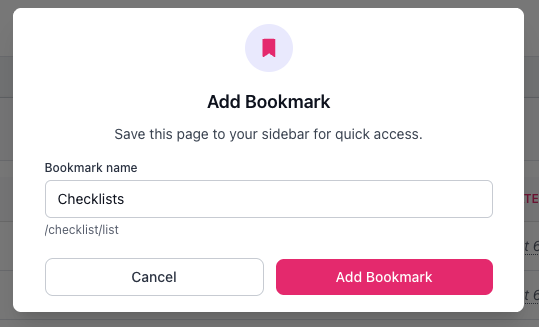
Once you save your changes, a new Bookmark will appear on the left side menu. There is a limit of 7 bookmarked pages.

Edit your Bookmarks
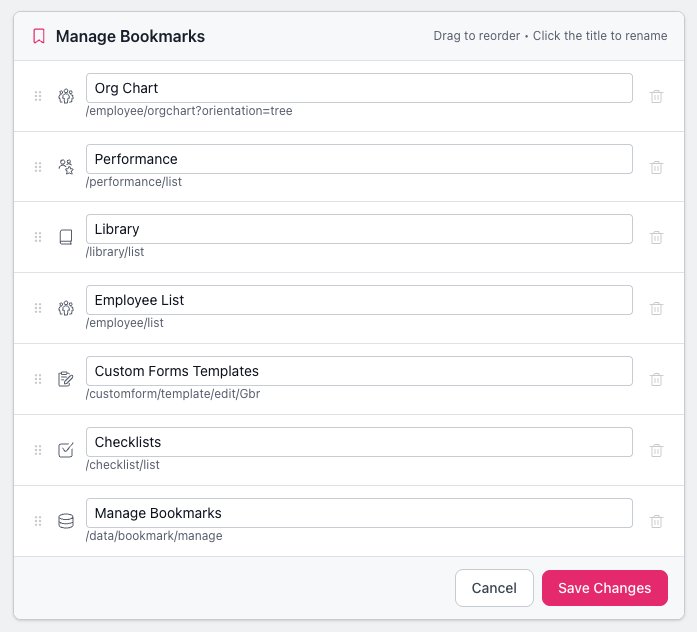
If you want to make any changes to the pages that you've bookmarked, you can do this by going to your Admin User Profile and clicking on Manage Bookmarks on the right hand side.
In the new window, you can edit the names of each Bookmark, drag to reorder them, or click the trash icon to delete a Bookmark entirely.